• Our Office
  • 72 Oceanview Drive Los Angeles,
    CA 90045 USA

How to Use ChatGPT: Complete Beginner's Guide (2026)

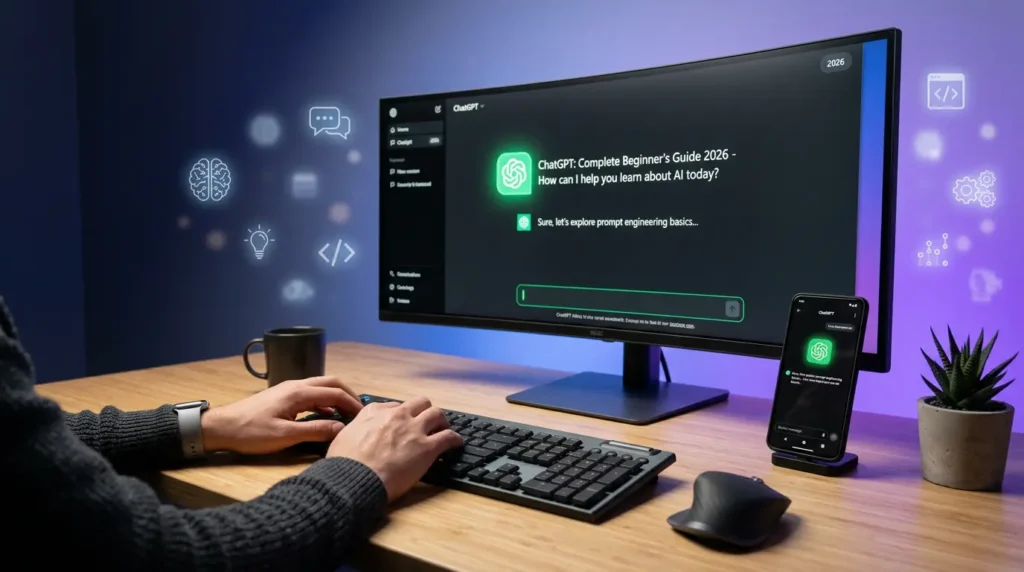
How to use ChatGPT complete beginner guide 2026 - featured image showing ChatGPT interface on laptop and mobile

INTRODUCTION

ChatGPT crossed 300 million weekly active users in 2026, making it the fastest-growing consumer application in history.


Yet here is the surprising part. Most people are barely scratching the surface.


They type in a vague question, get a generic answer, and walk away thinking, “That’s it?” The truth is, ChatGPT is extraordinarily powerful — when you know how to use it properly.


Whether you have never touched ChatGPT before or you have tried it and felt underwhelmed, this guide is built for you.


By the time you finish reading, you will know exactly how to sign up, navigate the interface, write prompts that actually deliver incredible results, and use ChatGPT for everything from writing emails to building business strategies.


No jargon. No fluff. Just a clear, step-by-step walkthrough with real examples you can start using today.


Let’s dive in.

Table of Contents

What Is ChatGPT?

ChatGPT is an AI-powered chatbot created by OpenAI. You type a message (called a “prompt”), and it responds with human-like text.


Think of it as a super-intelligent conversation partner that can write, explain, analyze, brainstorm, translate, code, and answer virtually any question you throw at it.

How Does ChatGPT Actually Work?

Without getting overly technical, ChatGPT is built on a Large Language Model (LLM). Here is the simplified version:


  1. Training: OpenAI fed the model billions of pages of text from books, websites, articles, and code repositories
  2. Pattern Learning: The model learned language patterns, facts, reasoning, and writing styles
  3. Fine-Tuning: Human trainers helped the model give more helpful, accurate, and safe responses
  4. Your Input: When you type a prompt, the model predicts the most helpful response based on everything it learned

The Evolution of ChatGPT

VersionReleaseKey Capability
GPT-3.5November 2022Basic conversation and writing
GPT-4March 2023Advanced reasoning, image understanding
GPT-4oMay 2024Faster responses, voice, and vision
GPT-4o MiniJuly 2024Lightweight, fast, cost-effective
GPT-52025Enhanced reasoning, deeper memory, multimodal mastery

In 2026, ChatGPT is smarter, faster, and more capable than ever. It can browse the internet, analyze files, generate images, write code, and even interact through voice — all within a single conversation.

Now let’s get you set up.

How to Sign Up for ChatGPT

Signing up for ChatGPT is completely free and takes less than two minutes. Here is exactly how to do it.

Step 1 — Go to the ChatGPT Website

Open your browser and navigate to:

👉 https://chat.openai.com

You will see the ChatGPT homepage with a clean interface and a prominent “Sign up” button.

How to use ChatGPT complete beginner guide 2026 - featured image showing ChatGPT interface on laptop and mobile

Step 2 — Create Your Account

Click "Sign up" and choose
one of these options:
  • Email address — Enter your email and create a password
  • Continue with Google — One-click signup with your Google account (fastest)
  • Continue with Microsoft — Use your Microsoft/Outlook account
  • Continue with Apple — Use your Apple ID

Pro Tip: Signing up with Google is the fastest method. One click and you are done.

Step 3 — Verify Your Email

If you signed up with an email address, OpenAI will send a verification link to your inbox.

  1. Open your email
  2. Find the email from OpenAI (check spam if you do not see it)
  3. Click the verification link
  4. You will be redirected back to ChatGPT

Step 4 — Complete Your Profile

You will be asked to enter:

  • Your first and last name
  • Your date of birth (you must be 13+ to use ChatGPT, or 18+ in some regions)

Accept the terms of service and you are all set.

Step 5 — Start Your First Chat

You will now see the ChatGPT interface. There is a text box at the bottom of the screen that says “Message ChatGPT.”

Type anything. Seriously, anything.

Try this starter prompt:

“Hi ChatGPT! I’m brand new here. Can you explain what you can help me with in simple terms?”

Congratulations — you are officially using ChatGPT!🎉

Using ChatGPT on Mobile

ChatGPT is also available as a free mobile app:

The mobile app includes voice mode, letting you talk to ChatGPT like you would a real person. It is genuinely impressive.

ChatGPT Interface Walkthrough

Before you start prompting like a pro, let’s make sure you understand the interface. Here is everything you see on screen.

The Chat Window (Center)

This is where the magic happens. Your messages appear on the right side and ChatGPT’s responses appear on the left side. Each conversation flows naturally, just like a messaging app.


Key features in the chat window:

  • Copy button — Copy any response with one click
  • Regenerate — Not happy with an answer? Click regenerate to get a new one
  • Edit — Click on any of your previous messages to edit and resubmit
  • Read aloud — Have ChatGPT speak its response out loud
  • Thumbs up/down — Rate responses to help improve the model

Sidebar & Chat History (Left Side)

Every conversation is automatically saved in the left sidebar. You can:


  • Search past conversations
  • Rename chats for easy organization
  • Delete conversations you no longer need
  • Create folders (Plus feature) to organize by project or topic


💡 Pro Tip: Get in the habit of naming your chats descriptively. Instead of “New Chat,” rename it to “Blog Post Ideas — January” or “Python Project Debug.” Future you will thank present you.

Model Selector (Top)

At the top of the chat window, you can select which AI model to use:

ModelAvailable OnBest For
GPT-4o MiniFree & PlusQuick questions, simple tasks
GPT-4oFree (limited) & PlusBalanced speed and intelligence
GPT-5Plus onlyComplex reasoning, analysis, coding
DALL-EFree (limited) & PlusImage generation

Settings & Customization

Click your profile icon (bottom-left) to access settings:


  • Custom Instructions — Tell ChatGPT about yourself so it tailors every response (game-changer — more on this later)
  • Data Controls — Manage whether your chats are used for training
  • Theme — Switch between light, dark, and system modes
  • Language — ChatGPT supports 50+ languages
  • Connected Apps — Link Google Drive, OneDrive, and more

Desktop App vs Web vs Mobile

FeatureWeb BrowserDesktop AppMobile App
Full functionality
Voice mode✅ (Best experience)
File uploads
Keyboard shortcuts
Offline access
Camera input

How to Write Effective ChatGPT Prompts

This is the most important section of this entire guide.

The quality of ChatGPT’s output depends almost entirely on the quality of your input. A vague prompt gets a vague answer. A specific, well-structured prompt gets a response that feels almost magical.

Let’s turn you into a prompt-writing machine.

The Anatomy of a Great Prompt

Every excellent prompt contains some combination of these five elements

ROLE → Who should ChatGPT pretend to be?
TASK → What exactly do you want it to do?
CONTEXT → What background information does it need?
FORMAT → How should the output be structured?
CONSTRAINTS → What rules or limitations should it follow?

You do not need all five every time. But the more elements you include, the better your results.

The RICE Prompt Framework

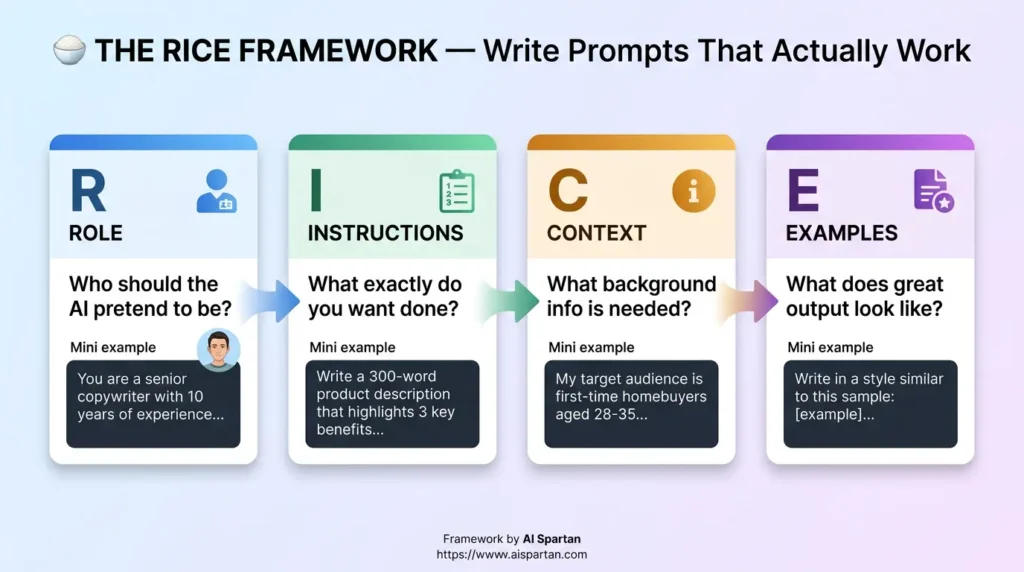
At AI Spartan, we teach the RICE Framework for writing powerful prompts:

R — Role: Assign ChatGPT a specific identity

I — Instructions: Give clear, detailed instructions
C — Context: Provide relevant background information
E — Examples: Show what good output looks like

Here is the RICE Framework in action:

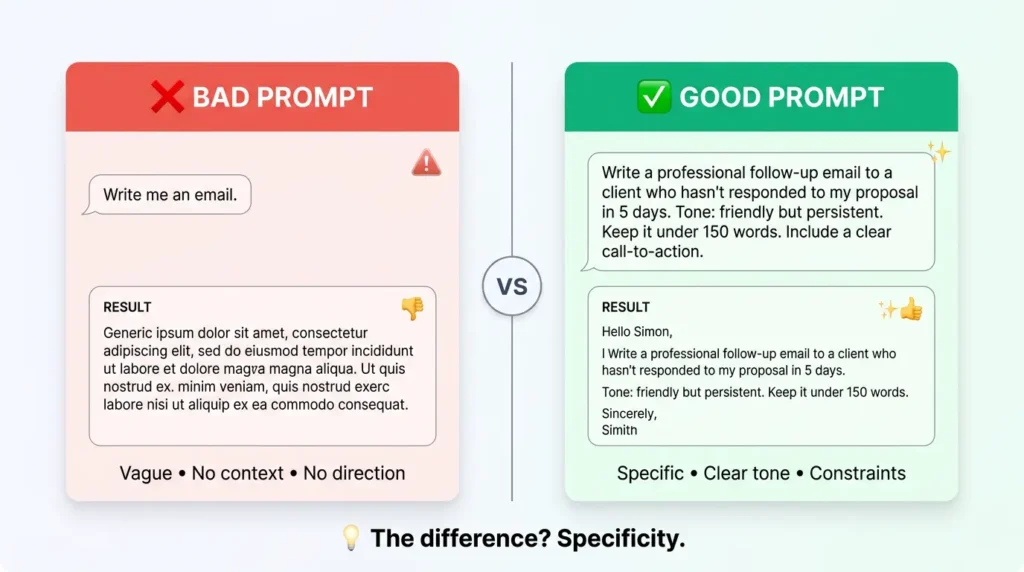
Without RICE (Bad Prompt):

“Write me a LinkedIn post.”

With RICE (Great Prompt):

“Role: You are a LinkedIn content strategist who specializes in tech industry thought leadership.


Instructions: Write a LinkedIn post about the importance of learning AI skills in 2026. Make it conversational, use short paragraphs, include a hook in the first line, and end with a question to drive engagement.


Context: I am a software developer with 8 years of experience who recently transitioned into an AI-focused role. My audience is mid-career tech professionals.

Example style: Similar to how Justin Welsh writes — punchy, value-driven, personal stories mixed with actionable advice.”

The difference in output quality is night and day.

Bad Prompt vs. Good Prompt: 5 Real Examples

❌ Bad Prompt✅ Good Prompt
Write an emailWrite a professional follow-up email to a client who hasn't responded to my proposal in 5 days. Tone: friendly but persistent. Keep it under 150 words.
Help me with PythonI'm getting a KeyError in my Python dictionary lookup. Here's my code: [paste code]. Explain why this error occurs and give me 3 ways to fix it.
Give me a workout planCreate a 4-day upper/lower workout split for an intermediate lifter. Goal: muscle building. Equipment: full gym. Include sets, reps, and rest times in a table format.
Tell me about marketingExplain 5 low-budget digital marketing strategies for a new e-commerce store selling handmade candles. Budget: under $500/month. Include expected ROI for each.
Write a blog postWrite a 1,500-word blog post about 'best productivity apps in 2026.' Use H2 and H3 subheadings, include a comparison table, write in a conversational tone, and naturally include the keyword 'best productivity apps' 3-5 times.
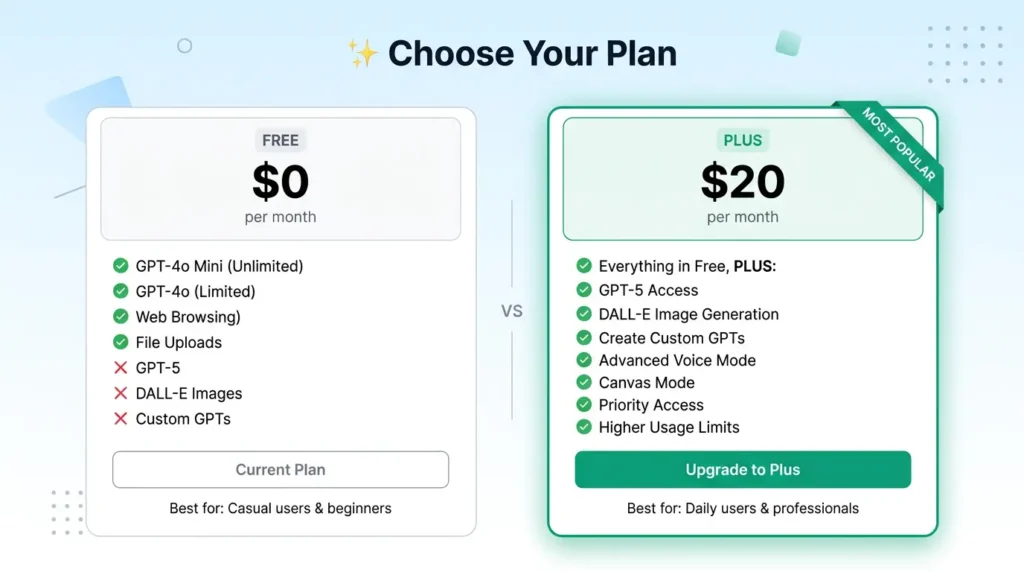
ChatGPT Free versus Plus plan comparison cards showing Free at zero dollars with limited features and Plus at twenty dollars per month highlighted as most popular with GPT-5 access, DALL-E images, custom GPTs, voice mode, and priority access

Advanced Prompt Techniques

Once you have mastered the basics, try these power moves:

1. Chain-of-Thought Prompting
Ask ChatGPT to think step by step before answering:

“I need to decide between buying and renting a home in Austin, TX with a $85K salary. Think through this step by step, considering finances, market conditions, lifestyle factors, and long-term wealth building. Then give me your recommendation.”


2. Few-Shot Prompting
Give ChatGPT examples of what you want before asking for output:

“Here are two product descriptions I love:

Example 1: [paste example]
Example 2: [paste example]
Now write a similar product description for my wireless noise-canceling headphones.”


3. Iterative Refinement
Do not expect perfection on the first try. Build on responses:

  • “This is good, but make the tone more casual”
  • “Expand on point number 3 with specific data”
  • “Rewrite this for a 10-year-old audience”
  • “Now convert this into bullet points”


4. Persona + Audience Stacking
Define both who ChatGPT is AND who it is writing for:


“You are a veteran personal finance advisor. Explain compound interest to a 22-year-old college graduate who has $5,000 in savings and knows nothing about investing.”

20+ ChatGPT Use Cases with Prompt Examples

Here is where ChatGPT truly shines. Below are 22 real use cases organized by category, each with a copy-paste prompt you can use right now.

For Students

1. Explain Complex Topics Simply

Prompt: “Explain quantum entanglement like I’m a 15-year-old who loves video games. Use analogies from gaming to make it relatable.”

2. Create Study Guides

Prompt: “Create a comprehensive study guide for AP US History, Chapter 12: The Civil War. Include key dates, important figures, cause-and-effect relationships, and 10 practice quiz questions with answers.”

3. Brainstorm Essay Ideas

Prompt: “I need to write a 2,000-word argumentative essay for my college English class. The topic is ‘social media’s impact on democracy.’ Give me 5 unique thesis statement options with 3 supporting arguments for each.”

4. Practice Problems

Prompt: “Generate 10 calculus practice problems on derivatives (chain rule and product rule). Start easy and progressively get harder. Provide step-by-step solutions for each.”

⚠️ Important Note: ChatGPT is a learning tool, not a cheating tool. Use it to understand concepts, check your work, and practice — not to submit AI-generated work as your own. Most schools have AI detection policies.

For Professionals

5. Draft Professional Emails

Prompt: “Write a professional email to my manager requesting a meeting to discuss a promotion. I’ve been in my role for 2 years, exceeded my KPIs by 30%, and led 3 successful projects. Tone: confident but respectful. Keep it under 200 words.”

6. Summarize Meeting Notes

Prompt: “Here are my raw meeting notes: [paste notes]. Clean these up into a professional meeting summary with: – Key decisions made – Action items (with owners and deadlines) – Open questions for follow-up”

7. Write Reports

Prompt: “Help me write an executive summary for our Q4 sales report. Key data: Revenue up 15%, new customers up 22%, churn rate down to 4.2%, top product: Enterprise Plan. Keep it to one page and make it compelling for C-suite readers.”

8. Analyze Data

Prompt: “I’m going to paste a CSV of our customer feedback scores. Analyze the data and identify:

1) Top 3 complaints

2) Overall sentiment trend

3) Recommended actions

4) Any surprising patterns Present findings in a clear report format.”

9. Create Presentation Outlines

Prompt: “Create a 10-slide presentation outline for pitching our new SaaS product to investors. Include suggested content for each slide, talking points, and data points I should include. Follow the classic pitch deck format.”

For Content Creators

10. Generate Blog Post Ideas

Prompt: “I run a personal finance blog targeting millennials. Generate 20 blog post ideas that have high search potential. For each idea, include: the suggested title, target keyword, estimated search intent, and a one-line content angle.”

11. Write Social Media Captions

Prompt: “Write 5 Instagram carousel caption options for a post about ‘5 morning habits of successful entrepreneurs.’ Make them engaging, use line breaks for readability, include relevant emojis, and end each with a call-to-action. Hashtags included.”

12. Create Video Scripts

Prompt: “Write a 5-minute YouTube video script about ‘how to start investing with $100.’ Include: a strong hook (first 10 seconds), timestamps/sections, conversational tone, B-roll suggestions in brackets, and a compelling CTA for subscribing.”

13. SEO Optimization

Prompt: “I’ve written a blog post about ‘best running shoes for flat feet.’ Review it for SEO and suggest:

1) Better title tags (include keyword)

2) Meta description (under 155 characters)

3) H2/H3 heading suggestions

4) Internal linking opportunities

5) Missing subtopics I should cover Here’s the article: [paste content]”

14. Repurpose Content

Prompt: “Take this 2,000-word blog post and repurpose it into:

1) A Twitter/X thread (10-12 tweets)

2) A LinkedIn post (300 words)

3) An email newsletter (500 words)

4) 5 Instagram carousel slide texts Maintain the key message but adapt the tone for each platform. Here’s the blog post: [paste content]”

For Developers

15. Generate Code

Prompt:

“Write a Python Flask API endpoint that: – Accepts POST requests with JSON body containing ’email’ and ‘message’ – Validates the email format – Stores the data in a SQLite database – Returns appropriate success/error responses – Includes error handling Include comments explaining each section.”

16. Debug Code

Prompt:

“This React component is not rendering correctly. The state updates but the UI doesn’t reflect changes. Here’s my code: [paste code]. Find the bug, explain why it’s happening, and provide the corrected code.”

17. Write Documentation

Prompt:

“Write clear API documentation for the following endpoint: [paste code]. Include: endpoint URL, method, required headers, request body format, example request, success response, error responses, and usage notes. Format it in Markdown.”

18. Learn New Programming Languages

Prompt:

“I know Python well and want to learn Rust. Create a learning roadmap comparing Python concepts to their Rust equivalents. Include code snippets showing the same logic in both languages. Start with basics and build to intermediate concepts.”

For Personal Use

19. Plan Travel

Prompt:

“Plan a 7-day trip to Japan for two people in April 2026. Budget: $5,000 total (excluding flights). Include: daily itinerary, must-visit places, hotel recommendations (mid-range), food suggestions, transportation tips, and a packing list. We love food, history, and nature.”

20. Create Custom Recipes

Prompt:

“I have chicken breast, broccoli, garlic, soy sauce, rice, and sesame oil in my kitchen. Create 3 different dinner recipes I can make with these ingredients. Include cooking time, difficulty level, calorie estimate, and step-by-step instructions.”

21. Build Fitness Plans

Prompt:

“Create a 12-week beginner workout plan for someone who wants to lose 20 pounds. I can go to the gym 4 days a week. Include: weekly schedule, specific exercises with sets/reps, progressive overload plan, and basic nutrition guidelines. I’m 30 years old, 5’10”, 210 lbs, male.

22. Learn New Skills

Prompt:

“Create a 30-day learning plan to go from zero to conversational in Spanish. I can dedicate 30 minutes per day. Include daily lessons, vocabulary lists, grammar concepts, practice exercises, and free resource recommendations.”

15 ChatGPT Tips and Tricks

Beginner Tips

1. Set Up Custom Instructions
Go to Settings → Personalization → Custom Instructions. Tell ChatGPT who you are and how you want responses formatted. This applies to every future conversation.


Example custom instructions:

“I’m a digital marketer who runs a small agency. I prefer concise, actionable responses with bullet points. Skip the fluff. When I ask for content, default to a professional but conversational tone.”


2. Use “Continue” for Long Responses
If ChatGPT’s response gets cut off mid-sentence, simply type “continue” or “keep going” and it will pick up right where it left off.


3. Ask for Multiple Options
Never settle for one answer. Ask ChatGPT to generate 3-5 variations so you can pick the best one or combine elements from each.


4. Specify the Format
Want a table? Say “format as a table.” Want bullet points? Say so. Want code? Specify the language. ChatGPT follows formatting instructions remarkably well.


5. Use ChatGPT to Improve ChatGPT Prompts
Not sure how to phrase something? Ask:

“I want to ask you about [topic]. What information should I include in my prompt to get the best possible answer from you?”

Intermediate Tips

6. Upload Files for Analysis
ChatGPT can read and analyze PDFs, images, spreadsheets, code files, and documents. Simply click the attachment icon and upload. Then ask questions about the content.


7. Create Custom GPTs
With ChatGPT Plus, you can create Custom GPTs — specialized versions of ChatGPT tailored for specific tasks. For example, a “Blog Editor GPT” that always checks your writing against your brand style guide.


8. Use Memory to Your Advantage
ChatGPT remembers information across conversations. Tell it key facts about yourself, your business, or your preferences, and it will recall them in future chats.


“Remember: My company is called TechFlow, we sell project management software, and our target audience is remote teams of 10-50 people.”


9. Ask ChatGPT to Critique Its Own Output
After getting a response, ask:


“Now review what you just wrote. What are the weaknesses? How could it be improved?”


Then say: “Great, now rewrite it with those improvements.”


10. Use Voice Mode for Brainstorming
Sometimes typing kills creativity. Switch to voice mode (mobile app or desktop) and brainstorm ideas by talking. It feels like having a brilliant colleague to bounce ideas off.

Power User Tips

11. Create Templates You Reuse
Build a prompt template library for tasks you do repeatedly. Save them in a document and copy-paste when needed. This saves enormous time.


12. Chain Multiple Prompts for Complex Tasks
Break big projects into steps:

  1. First prompt: Research and outline
  2. Second prompt: Write the first draft
  3. Third prompt: Edit and improve
  4. Fourth prompt: Format and polish


13. Use Canvas Mode for Editing
ChatGPT’s Canvas feature opens a side-by-side editor where you can collaboratively edit documents and code. Perfect for long-form writing and programming projects.


14. Combine with Other Tools
Use ChatGPT alongside:

  • Google Docs — for document editing
  • Canva — for designing visuals from ChatGPT content
  • Notion — for organizing AI-generated content
  • Zapier — for automating ChatGPT workflows


15. Stay Updated on New Features
OpenAI ships new features constantly. Follow @OpenAI on X/Twitter and check AI Spartan’s blog for the latest updates and tutorials.

10 Common ChatGPT Mistakes to Avoid

Even experienced users make these errors. Here is what to watch out for — and how to fix each one.

Mistake 1: Being Too Vague

Problem: “Tell me about marketing.”


Fix: “Explain 5 digital marketing strategies for a new e-commerce clothing brand targeting Gen Z with a monthly budget of $1,000.”

Mistake 2: Accepting the First Response

❌ Problem: Taking whatever ChatGPT gives you without refining.


✅ Fix: Always iterate. Ask for revisions, alternatives, or improvements. The second or third version is almost always better.

Mistake 3: Not Providing Context

❌ Problem: Asking questions in a vacuum without background information.


✅ Fix: Include who you are, who your audience is, what you have already tried, and what success looks like.

Mistake 4: Using ChatGPT as a Search Engine

Problem: Asking for real-time news, current stock prices, or today’s weather.


Fix: ChatGPT can now browse the web, but for real-time data, verify with primary sources. Use ChatGPT for analysis, synthesis, and creation — not simple fact lookup.

Mistake 5: Trusting Everything Without Verification

❌ Problem: Assuming every fact, statistic, or claim is accurate.


✅ Fix: Always fact-check important information, especially statistics, dates, and technical claims. ChatGPT can occasionally “hallucinate” — generating plausible-sounding but incorrect information.

Mistake 6: Writing Massive Prompts All at Once

❌ Problem: Cramming 10 different requests into one enormous prompt.


✅ Fix: Break complex tasks into smaller, sequential prompts. Guide ChatGPT step by step for better results.

Mistake 7: Not Using System-Level Instructions

❌ Problem: Repeating the same preferences in every new chat.


✅ Fix: Use Custom Instructions (Settings → Personalization) to set your preferences once. ChatGPT will follow them automatically.

Mistake 8: Ignoring File Upload Capabilities

❌ Problem: Manually copying and pasting text from documents.


✅ Fix: Upload the file directly. ChatGPT handles PDFs, spreadsheets, images, and code files. Let it do the extraction work.

Mistake 9: Not Specifying Tone and Audience

❌ Problem: Getting responses that sound robotic or too academic.


✅ Fix: Always specify tone (casual, professional, witty, empathetic) and audience (beginners, experts, children, executives).

Mistake 10: Forgetting ChatGPT Can See Images

❌ Problem: Describing screenshots or diagrams in text when you could just upload them.


✅ Fix: Upload images directly and ask ChatGPT to analyze, explain, or extract information from them.

Quick Reference: Mistakes at a Glance

MistakeOne-Line Fix
Too vagueAdd specifics: who, what, why, how many
No iterationAlways ask for version 2 and 3
No contextShare background and goals
Using as search engineUse for creation, not simple lookups
Blind trustFact-check important claims
Massive promptsBreak into smaller steps
Repeating preferencesSet Custom Instructions once
Not uploading filesUse the attachment button
No tone specifiedState tone and target audience
Describing imagesUpload images directly

ChatGPT Free vs. Plus vs. Team vs. Enterprise

One of the most common questions beginners ask is: “Do I need to pay for ChatGPT?”

Here is the honest answer and a complete comparison.

Feature Comparison Table

FeatureFree ($0)Plus ($20/mo)Team ($25/user/mo)Enterprise (Custom)
GPT-4o Mini✅ Unlimited✅ Unlimited✅ Unlimited✅ Unlimited
GPT-4o✅ Limited✅ Generous limit✅ Higher limit✅ Unlimited
GPT-5✅ Yes✅ Yes✅ Yes
DALL-E (Image Generation)✅ Limited✅ Yes✅ Yes✅ Yes
Web Browsing✅ Yes✅ Yes✅ Yes✅ Yes
File Uploads & Analysis✅ Yes✅ Yes✅ Yes✅ Yes
Custom GPTs✅ Use only✅ Create & use✅ Create & share✅ Full control
Canvas Mode✅ Yes✅ Yes✅ Yes
Advanced Voice Mode✅ Yes✅ Yes✅ Yes
Priority Access✅ Even during peak✅ Yes✅ Yes
Admin Console✅ Yes✅ Yes
SSO & Security✅ Yes
Data not used for training✅ Yes✅ Yes

Who Should Get ChatGPT Plus?

ChatGPT Plus ($20/month) is worth it if you:

  • ✅ Use ChatGPT daily for work or content creation
  • ✅ Want access to GPT-5 (significantly smarter for complex tasks)
  • ✅ Need image generation with DALL-E
  • ✅ Want to create Custom GPTs for specific workflows
  • ✅ Get frustrated by usage limits on the free plan
  • ✅ Want Advanced Voice Mode for natural conversations

The ROI calculation is simple: If ChatGPT saves you even 1 hour per week of work, and your time is worth $20+/hour, Plus pays for itself in the first week.

Who Should Stay on Free?

The Free plan is perfectly fine if you:

  • ✅ Use ChatGPT occasionally (a few times per week)
  • ✅ Primarily need quick answers, writing help, or brainstorming
  • ✅ Are a student or hobbyist exploring AI
  • ✅ Don’t need the most advanced model for every task
  • ✅ Are just getting started and want to test the waters

💡 Our Recommendation: Start with the Free plan. Use ChatGPT regularly for 2-3 weeks. If you find yourself hitting limits or wanting more power, upgrade to Plus. You can cancel anytime.
Best ChatGPT Alternatives in 2026

ChatGPT is not the only AI chatbot in town. Here are the top alternatives worth knowing about.

Quick Comparison

AI ChatbotBest ForFree PlanPricingKey Strength
ChatGPTAll-around versatility$20/mo (Plus)Largest ecosystem, Custom GPTs
Google GeminiGoogle ecosystem users$20/mo (Advanced)Deep Google integration, real-time data
Claude (Anthropic)Long documents & analysis$20/mo (Pro)200K context window, nuanced writing
Microsoft CopilotMicrosoft 365 users$20/mo (Pro)Built into Windows, Office, and Edge
Perplexity AIResearch & citations$20/mo (Pro)Source citations, academic research
Meta AISocial media integrationFreeBuilt into WhatsApp, Instagram, Facebook

1. Google Gemini

Best for: People deep in the Google ecosystem (Gmail, Drive, Docs, YouTube). Gemini integrates directly with Google services. The Advanced plan includes Gemini Ultra, which competes directly with GPT-5.

2. Claude by Anthropic

Best for: Writers, researchers, and anyone working with long documents. Claude can process up to 200,000 tokens in a single prompt — that is roughly a 500-page book. Its writing tends to be more nuanced and natural-sounding.

3. Microsoft Copilot

Best for: Windows users and anyone who lives in Microsoft 365 (Word, Excel, PowerPoint, Outlook). Copilot is powered by OpenAI’s models but integrated directly into Microsoft products.

4. Perplexity AI

Best for: Research-heavy tasks. Unlike ChatGPT, Perplexity cites its sources with numbered references, making it excellent for academic research, fact-checking, and journalism.

5. Meta AI

Best for: Casual use within social apps. Meta AI is free and built directly into WhatsApp, Instagram, Facebook, and Messenger. It is convenient but less powerful than ChatGPT or Claude.

Our take: ChatGPT remains the most versatile and feature-rich option for most users. But it is worth trying alternatives — each has unique strengths. Many power users keep 2-3 AI tools in their toolkit.

Frequently Asked Questions (FAQ)

Is ChatGPT free to use?

Yes. ChatGPT offers a robust free plan that includes access to GPT-4o Mini (unlimited), GPT-4o (limited), web browsing, file uploads, and basic image generation. You do not need to pay anything to start using ChatGPT. The Plus plan ($20/month) adds GPT-5, higher limits, and advanced features.

Is ChatGPT safe to use?

Generally, yes. OpenAI has implemented extensive safety measures. However, you should avoid sharing highly sensitive personal information (SSN, passwords, confidential business data) in your chats. Review OpenAI’s privacy policy and use the Data Controls in settings to manage how your data is handled.

Not entirely. ChatGPT excels at synthesizing information, generating content, and providing detailed explanations. However, Google is still better for real-time information, local results, shopping, and navigating to specific websites. Many users now use both — ChatGPT for deep answers and Google for quick lookups.

Does ChatGPT save my conversations?

Yes, by default. Your conversations are saved in the sidebar for easy access. You can delete individual chats or clear your entire history in Settings → Data Controls. You can also toggle off chat history, which means conversations will not be saved or used for model training.

Can teachers and professors detect ChatGPT-generated text?

Often, yes. AI detection tools exist (like GPTZero and Turnitin’s AI detector), and experienced educators can often spot AI-generated writing. More importantly, submitting AI-generated work as your own violates most academic integrity policies. Use ChatGPT as a learning companion, not a ghostwriter.

What is GPT-5 and is it worth the upgrade?

GPT-5 is OpenAI’s latest and most advanced model, available exclusively to Plus, Team, and Enterprise users. It offers significantly improved reasoning, better understanding of nuance, enhanced coding abilities, and more accurate responses. If you use ChatGPT for professional work or complex tasks, GPT-5 is a noticeable upgrade.

Can ChatGPT generate images?

Yes. ChatGPT integrates with DALL-E, OpenAI’s image generation model. Simply describe what you want in natural language, and ChatGPT will create an image. Free users get limited generations per day, while Plus users get significantly more.

Does ChatGPT work in languages other than English?

Yes. ChatGPT supports over 50 languages including Spanish, French, German, Chinese, Japanese, Hindi, Arabic, Portuguese, Korean, and many more. It can also translate between languages and have conversations in your preferred language.

Final Thoughts

You now know everything you need to start using ChatGPT confidently and effectively in 2026.


Let’s quickly recap what we covered:

  • ✅ Signed up for a free ChatGPT account in under 2 minutes
  • ✅ Navigated the interface like a pro
  • ✅ Learned the RICE Framework for writing powerful prompts
  • ✅ Discovered 22 real use cases across work, school, content creation, coding, and personal life
  • ✅ Picked up 15 tips and tricks from beginner to power user level
  • ✅ Identified 10 common mistakes and exactly how to avoid them
  • ✅ Compared pricing plans to decide what is right for you
  • ✅ Explored top alternatives so you know your options


Here is the thing about ChatGPT — you learn by doing. No amount of reading can replace the experience of typing prompts, seeing results, refining your approach, and gradually discovering what works.

So close this tab (after bookmarking it, of course 😉)


and go start a conversation with ChatGPT. Try three prompts from this guide. Experiment. Play. Break things.


The AI revolution is not coming. It is here. And now you know how to be part of it.

Hi, I’m Nitish,

tech enthusiast / digital marketer from India

Some fun facts about me:

🤖 I’ve tested 200+ AI tools (and counting)
☕ I run on coffee and curiosity
📝 I’ve written 100+ articles about AI
🎯 My goal is to help 1 million people find the right AI tools
💡 I believe AI should be accessible to everyone, not just tech experts